We will display all the products that will expire in 3 months.We will display all the product quantities like total purchase quantity, total sale quantity, actual quantity, available quantity, and so on.In this module, we can raise a pharmacy purchase request to the manager.We will also display all the pharmacy purchase requests. In this module, we can also adjust the stock.
Products :
1. Expiry Products
2. Products Qty
3. Purchase Request
4. Requested Purchases
5. Stock Adjustment
Q: where can i find the expiry products list ?
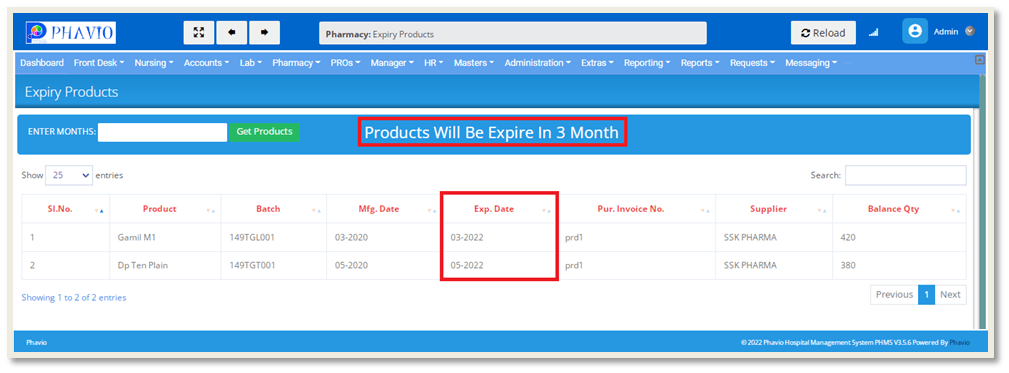
To find the expiry products list, first we need to go to the Expiry Products page in the Pharmacy module.
On this page we will display all the products that
will expire in 3 months.
2. Products Quantity:
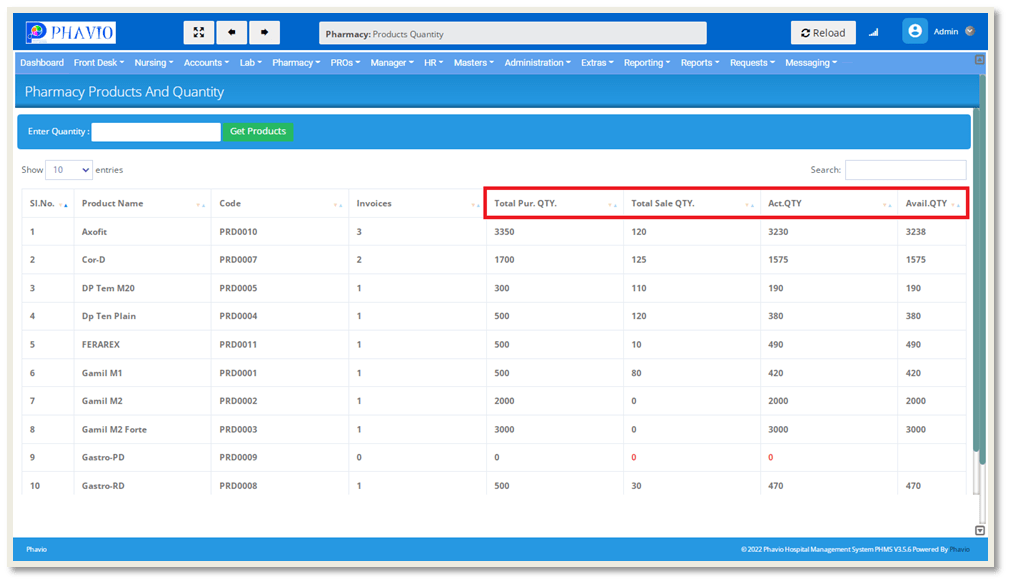
On this page we will display all the products quantities, like total purchase quantity, total sale quantity, actual quantity, and available quantity, as shown below:
Q: How to raise the pharmacy purchase request ?
To raise the pharmacy purchase request, first we need to go to the purchase request page in the Pharmacy module.
On this page we will display all the products, as shown below:
First we need to enter the required quantity of the product and then click on the "Add To Cart" button.
Then the products will be added to the cart.
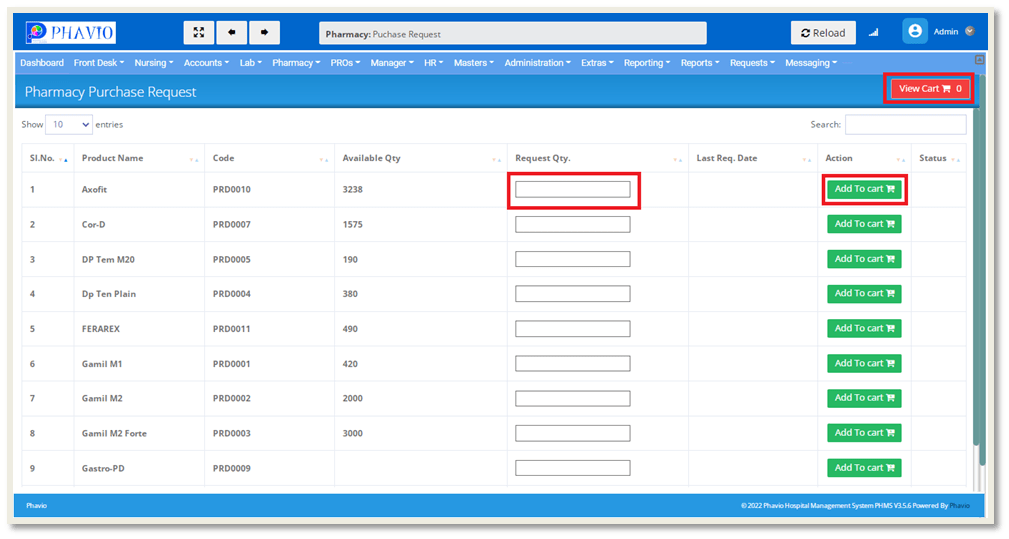
By clicking on the View Cart button shown on the right side of the above image, we can see the added products to the cart.
If we click on the "View Cart" button, the page will appear like this.
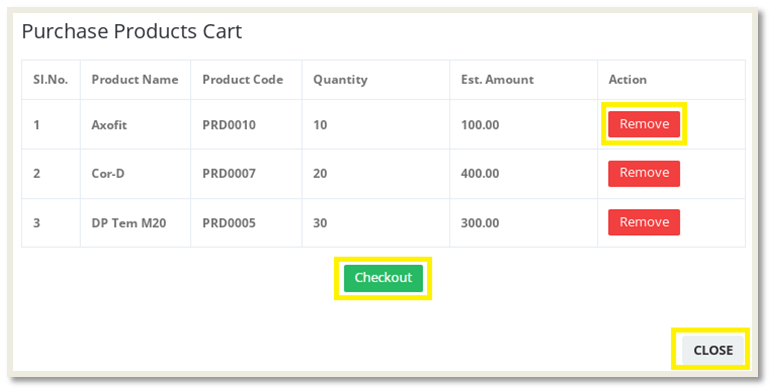
We can remove the products by clicking on the "Remove" button.
If we need to close the page, we need to click on the "Close" button.
If we click on the "Checkout" button, the page will appear like this:
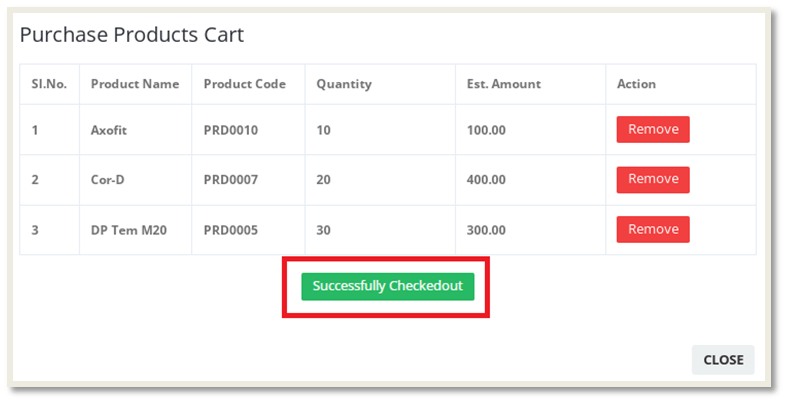
Then the status was changed to "Successfully Checked out".
We can close the page by clicking on the "CLOSE" button.
We can see the purchase requests under the "Requested Purchases" page.
Q: Where can i find the pharmacy requested purchases?
To find the pharmacy requested purchases, first we need to go to the requested purchases page in the Pharmacy module.
On this page we will
display all the pharmacy purchase requests, as shown below:
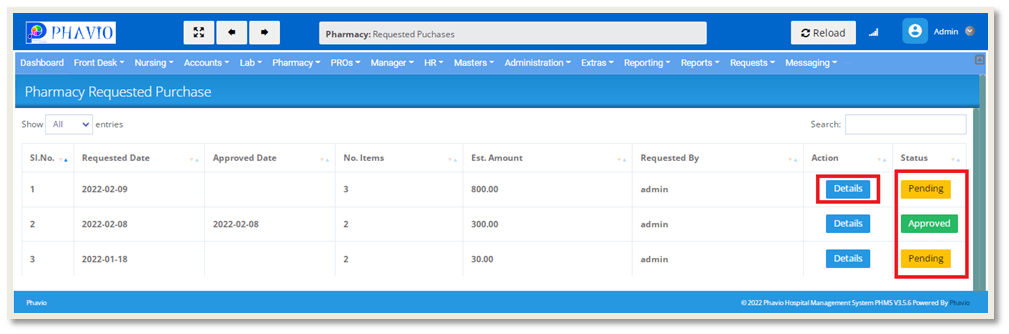
Here we can check the status of the request, whether it is approved or not.
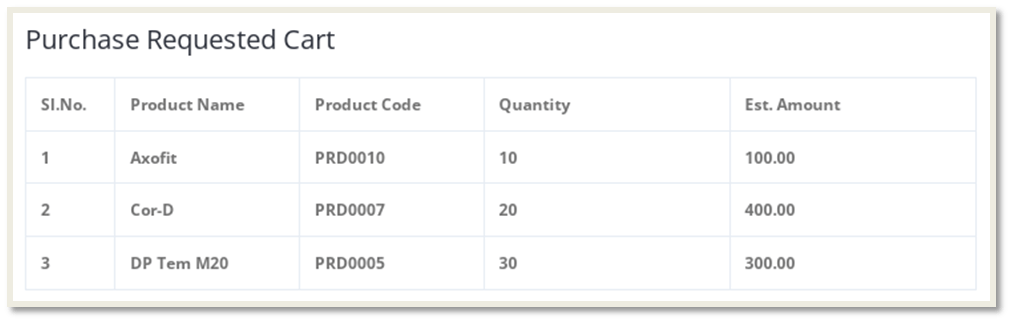
If we click on the Details button, we can see the product details of that purchase request, as shown below.
Q: How to adjust the stock of the product ?
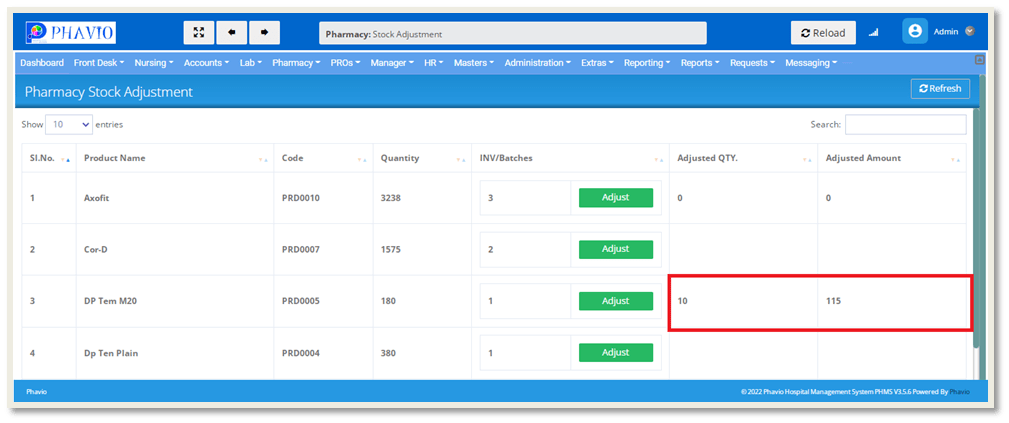
On this page we can adjust the stock by click on the Adjust button , as shown in the below image :
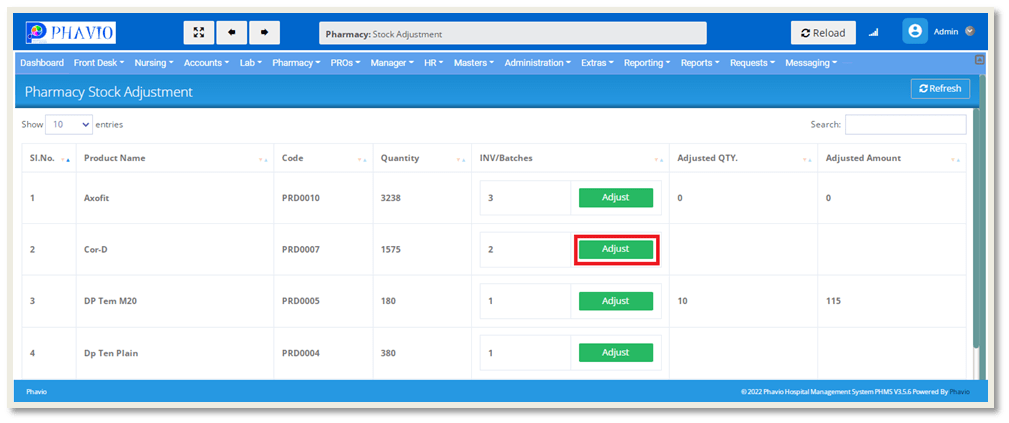
If we click on the Adjust button , the form will appear like this
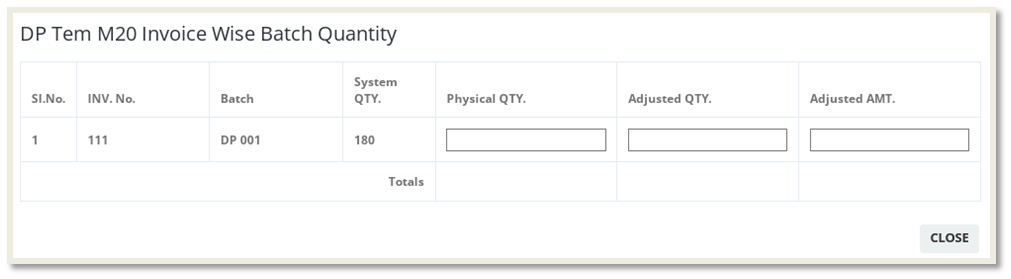
If we enter the physical quantity, then automatically we will get the adjusted quantity and adjusted amount.
Then click on the "CLOSE" button.
Adjusted stock will be displayed in the below image: